
Dropbox: Secure Cloud Storage
Dropbox, Inc.Productivity
4.386.79K Reviews
- Version
- 498.2.2
- Installs
- 1.00B
- Age Rating
- Everyone
Screenshots
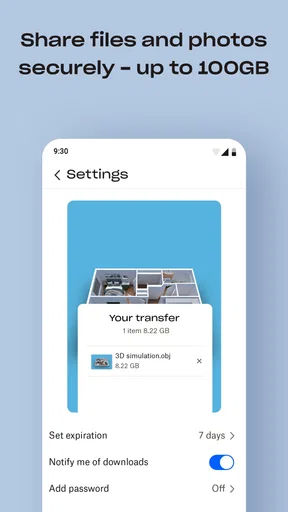
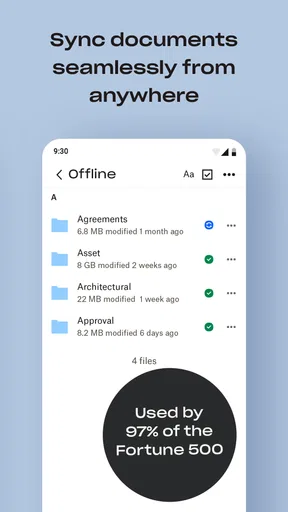
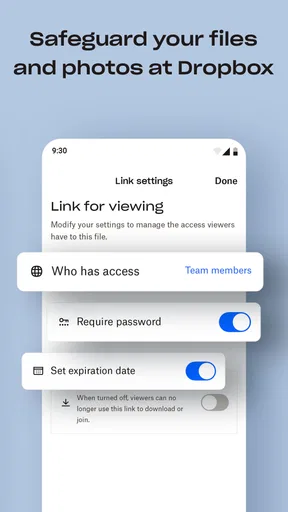
Our Review of Dropbox: Secure Cloud Storage
 Analysis by Appyee
I reach for Dropbox when a file needs to be available beyond the device where I saved it. That simple handoff is the app’s strongest idea: put a document, photo, or video in one place, then get to it from another device or share it with someone else. I find that more useful than treating cloud storage as a remote cupboard for old files. It works best when I use it as a practical bridge between the places where I work, study, and keep personal memories.
One dependable home for files you need to move
Dropbox is a free productivity app from Dropbox, Inc., built around storing and sharing files. In everyday use, the central benefit is continuity: I can upload something from my phone and later retrieve it elsewhere, rather than relying on a single device or sending multiple copies to myself. That is especially handy for files I need to show, revise, or pass along, not just keep.
The distinction matters when choosing among cloud services. A phone’s built-in storage is convenient but tied to that device; email works for a quick attachment but can leave several versions scattered through a conversation. Dropbox gives me a dedicated place to organize the working copy and share access to it. If my main need is simply backing up a device with minimal setup, a built-in platform service may feel more automatic. If I regularly move files between devices or people, Dropbox’s file-first approach makes more sense.
Getting started and finding the right file
Ever found yourself scrambling to send a file last minute, only to realize it's stuck on your home computer? Welcome to the club! But hey, that's where Dropbox: Secure Cloud Storage comes in. It promises to be your digital backpack—keeping everything you need right in your pocket. Let's dive into what makes this app a must-have or just another icon cluttering your home screen.
Getting Started with Dropbox
So, the first thing you do after downloading Dropbox is set up an account. Pretty standard stuff, right? You can either create a new account or log in with your existing credentials. It’s like the app rolls out a welcome mat for you, making the process super smooth. I was up and running within minutes, no tech expertise required!
The Interface: Clean and User-Friendly
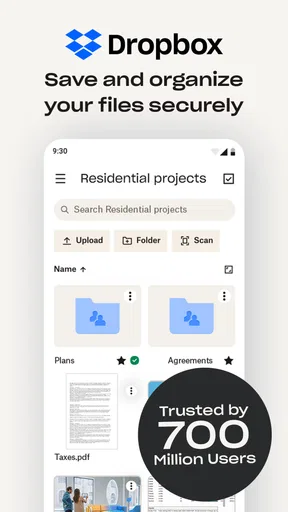
Once you're in, the interface is as intuitive as it gets. Seriously, even my grandma could navigate this. The home screen offers easy access to recent files, and the bottom menu is where all the magic happens. You've got tabs for Home, Files, Photos, and Account. Simple and effective. The design is minimalistic, so you won’t feel overwhelmed by too many options.
For a working folder, I suggest deciding on a few clear names before uploading a large batch: one for active projects, one for documents to share, and one for personal files. This small bit of housekeeping makes the Files area easier to use later, particularly when you are searching on a phone and do not want to scroll through a long, mixed list. I also try to give versions useful names before sharing, so a recipient is less likely to mistake a draft for the final copy.
Features That Stand Out
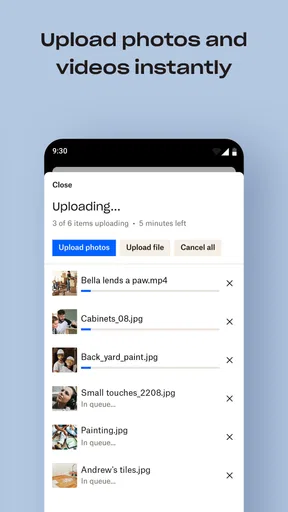
Alright, let's talk features. First off, the app offers a generous amount of cloud storage for free users, but if you’re looking to store entire libraries of data, you might want to consider their paid options. Uploading files is a breeze, and you can sync them across devices seamlessly. I’m talking about real-time syncing here, folks—your files are available on any device as soon as you upload them.
That sync model is most valuable when I treat Dropbox as the handoff point in a routine. For example, I can put a presentation or a set of reference images in a project folder on one device, then open the same material from another without carrying a cable or remembering which copy is newest. It is still worth checking that an upload has finished before leaving a reliable connection, especially with a large file. Cloud access is only reassuring when the file has actually made it into the account.
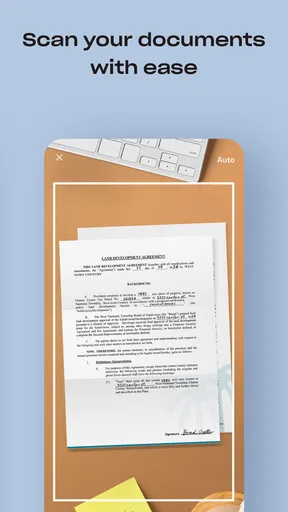
A realistic day might look like this: I take a photo of a paper receipt or a whiteboard note, put the useful file in the folder for that project, and share the folder or file with a colleague who needs it. Later, I can return to the same material instead of searching through a message thread. The practical advantage is less about a dramatic feature and more about having a repeatable place for the item. For sensitive documents, I would still pause before sharing, check who should have access, and avoid sending a broad link when a narrower handoff will do.
One feature I absolutely love is the ability to share files with just a couple of taps. Whether it’s a 5 MB document or a 1 GB video, sharing is as easy as pie. Plus, you can set permissions for each file, so you’re always in control. Want to make sure your BFF sees that hilarious video but your boss doesn’t? Dropbox has got you covered.
Sharing is also where a little care prevents confusion. Before I send something, I check that I have chosen the intended file and the right access level; a convenient share action does not remove the need to think about the recipient. For a one-off handoff, sharing a specific item keeps the scope clearer than making a whole folder available. If several people are collaborating, a shared folder can be more practical, but it helps to agree on where the current version belongs instead of letting copies proliferate across chats and devices.
Security: Your Files Are Safe
Now, let's address the elephant in the room—security. We all know how crucial it is to keep our digital assets safe these days, and Dropbox takes this seriously. The app uses advanced encryption methods to protect your files. It’s like having a digital vault where you can stash your stuff without worry. Two-step verification further adds a layer of security, making unauthorized access nearly impossible.
I see security as a set of habits as well as a feature. A strong, unique account password and two-step verification are sensible safeguards, while checking sharing choices helps prevent an accidental audience. I would not treat any cloud account as a reason to upload every private record without thought. For files that need special handling, consider whether cloud storage is appropriate at all and follow the rules of the organization or person responsible for them.
Offline Access and More
Imagine being on a flight and needing to access your files—no internet, no problem. With Dropbox, you can mark files for offline access. This feature has saved my skin more times than I can count. You can edit documents while offline, and they'll sync as soon as you’re back online. Seriously, it doesn’t get more convenient than this.
The useful trick is to prepare before connectivity disappears. I mark only the documents I know I will need, then open them once while connected so I am not discovering a problem at the airport, on a train, or in a basement meeting room. Offline availability is not the same as an independent backup: changes still need a connection to sync, so I avoid relying on a pending upload as the only copy of important work. When service returns, I give it time to catch up before assuming another device has the latest version.
Another cool feature is the app’s integration with other popular tools like Microsoft Office and Slack. This makes it easier to collaborate and get work done without juggling between different apps. It’s like having a Swiss Army knife right on your phone.
Those connections are useful when a team already has a routine built around those tools, but I would not choose Dropbox solely because another app can connect to it. A solo user who mostly edits documents may prefer working directly in a document suite, while someone who passes around many kinds of files can benefit from keeping them in a shared storage space. The best setup is the one that avoids duplicate “final” files, not the one with the longest list of integrations.
Drawbacks: Nobody's Perfect
Okay, let’s be real. No app is flawless. One thing I noticed is that if you’re not on a premium plan, the storage can fill up quicker than you’d expect. Also, while the app is generally smooth, there were a couple of times I experienced slight lags when uploading large files. Nothing major, but worth mentioning.
Storage is the trade-off I would think about first. A free account is easy to try, but a photo collection or frequent video sharing can grow beyond what a light document workflow needs. Dropbox offers in-app purchases, with listed items ranging from $6.99 to $299.99, so I would check the current plan details and storage allowance in the app before deciding to pay. If you mainly need occasional access to a handful of files, it may be better to keep the collection selective rather than subscribe just to preserve every duplicate.
Dropbox also has a large audience: it has a 4.4 average from around 2.3 million ratings, and has passed 1 billion installs. That scale can make the service feel familiar when someone asks you to share a file, but popularity does not settle whether it fits your workflow. I would judge it by how often I move files across devices, how much space I need, and whether the people I work with can use the sharing setup comfortably.
When comparing alternatives, I would separate file syncing from full-device backup. Dropbox is a strong fit for keeping selected files reachable and shareable; a phone maker’s cloud service may be simpler if the goal is mainly to restore that same phone’s photos and settings. Email or messaging is quicker for one small attachment, but less tidy when a document changes and several people need the latest copy. For a household already invested in another storage ecosystem, staying there may be easier; for mixed devices and frequent file handoffs, Dropbox’s straightforward folder approach can be the more natural choice.
Who will get the most from it
Students can use it to keep class materials accessible between a phone and another device, and to send a project file without attaching it repeatedly. Freelancers and small teams may appreciate a shared location for client assets, drafts, and deliverables, provided they agree on folder organization and access. It is also useful for personal photos or videos that I want to retrieve or share without depending on the device where they were captured.
I would skip it if I rarely leave one device, have no need to share files, or already have enough storage in a service that fits naturally into my routine. It is also not a magic solution for messy files: uploading every download without a naming or sorting habit simply moves clutter into the cloud. People who need a formal records system or tightly controlled organizational storage should use the system their workplace or institution requires, rather than assuming a general-purpose app is a substitute.
Wrapping It Up
So, is Dropbox: Secure Cloud Storage worth the download? Absolutely. Whether you're a student saving assignments, a professional managing projects, or just someone who wants easy access to their files, Dropbox has something for everyone. The ease of use, solid security, and convenient features make it a standout choice in the crowded field of cloud storage apps.
Dropbox is rated for Everyone, and its current version is 458.2.4, with support for operating systems from version 9 onward. It has been available since May 4, 2010, but what matters to me is that the basic idea remains easy to understand: keep chosen files somewhere I can reach them, then share them when needed. I would start with a small set of genuinely useful items, learn how the folders and sharing controls fit my habits, and only then decide whether I need more space.
So what are you waiting for? Give it a whirl and see if it changes the way you handle your digital life. Trust me, your phone will thank you for it.
Privacy and Permissions
See what permissions an app requests and how it handles your data.
- Photos/Media/Files
- read the contents of your USB storage, modify or delete the contents of your USB storage
- Storage
- read the contents of your USB storage, modify or delete the contents of your USB storage
- Camera
- take pictures and videos
- Wi-Fi connection information
- view Wi-Fi connections
- Other
- view network connections, full network access, read sync settings, run at startup, draw over other apps, control vibration, prevent device from sleeping, toggle sync on and off
How Dropbox: Secure Cloud Storage Compares
Full ComparisonGoogle Drive suits Google Workspace users, OneDrive fits Microsoft 365 households, and Dropbox appeals to people who value straightforward sharing and offline access.
| App | Developer | Rating | Price |
|---|---|---|---|
 Google Drive | Google LLC | 4.3 | Free |
 Microsoft OneDrive | Microsoft Corporation | 4.6 | Free |
 Dropbox: Secure Cloud StorageThis App | Dropbox, Inc. | 4.3 | Free |
Verdict
Strengths of Dropbox: Secure Cloud Storage
- Easy file sharing across all devices.
- Automatic photo and video backup.
- Offline access to important files.
- Integrates well with third-party apps.
- Strong encryption for data security.
Limitations of Dropbox: Secure Cloud Storage
- Limited free storage space.
- Requires internet for full functionality.
- Syncing can drain battery quickly.
- Advanced features need paid subscription.
- Occasional sync delays reported.
Similar Picks in This Category
View All
Google Calendar
Google LLC4.6

Google Drive
Google LLC4.3

Google Assistant
Google LLC3.9

Microsoft OneDrive
Microsoft Corporation4.6

Samsung Calendar
Samsung Electronics Co., Ltd.4.1

Microsoft OneNote: Save Notes
Microsoft Corporation4.6
You May Also Like
View All
Frequently Asked Questions
What platforms is Dropbox available on?
Dropbox is available on multiple platforms, including Android, iOS, Windows, and macOS. This cross-platform compatibility ensures that users can access their files from any device they own, whether it's a smartphone, tablet, or computer, providing seamless synchronization and flexibility for both personal and professional use.
How secure is my data on Dropbox?
Dropbox employs advanced security measures, including AES-256 bit encryption and SSL/TLS protocols, to ensure your data is protected both in transit and at rest. Additionally, Dropbox offers two-factor authentication for added security, making it a reliable choice for users concerned about the safety and privacy of their stored files.
What is the storage capacity offered by Dropbox?
Dropbox offers several storage plans to cater to different needs. The Basic plan provides 2 GB for free, while the Plus and Professional plans offer 2 TB and 3 TB, respectively, with additional features. Business plans are also available, providing even more storage and collaboration tools for teams and companies.
Can I share files and folders with others using Dropbox?
Yes, Dropbox allows easy sharing of files and folders with others. You can generate a shareable link to send via email or other communication platforms. Additionally, you can set permissions to control whether the recipient can view, comment, or edit the files, providing flexibility and control over your shared content.
Does Dropbox support offline access to files?
Dropbox enables offline access by allowing users to download files to their devices. On mobile, you can mark files for offline access, ensuring they're available even without an internet connection. This feature is particularly useful for users who need to access important documents while traveling or in areas with limited connectivity.
